Building a Cloud-Free Security Analyst: Home Assistant and Local Vision AI
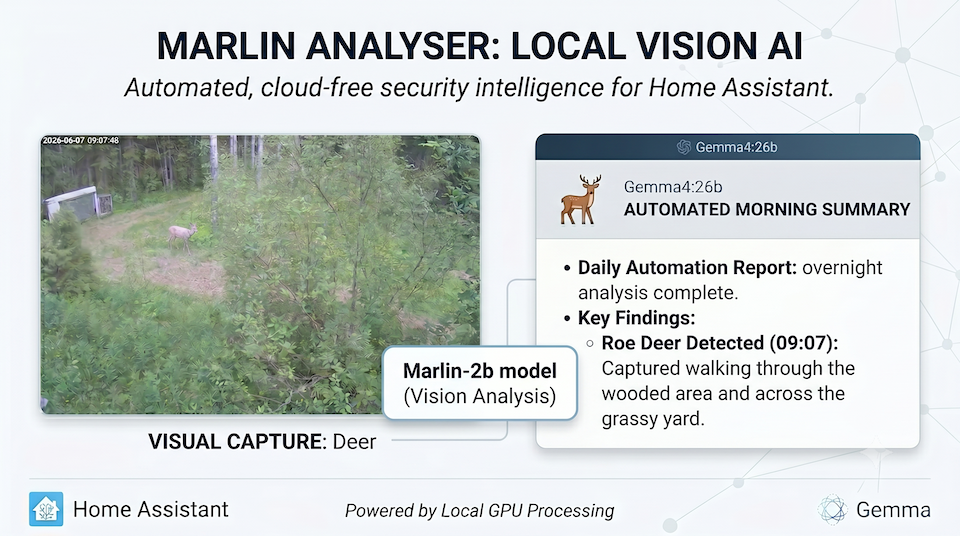
If you run a local smart home, you probably share my biggest frustration with security footage: the manual review process. Waking up to a list of motion alerts means wasting time checking if the trigger was a valid security concern or just a familiar face, like my son driving home late. I wanted to completely automate this with AI, but finding a tool that bridged Unifi Protect and Home Assistant—while keeping all data strictly local and cloud-free—proved impossible. So, I wrote the software myself. Welcome to Marlin Analyser!
A quick heads-up: building this pipeline requires getting your hands dirty with Docker containers, Proxmox, and advanced Home Assistant YAML configurations. If you are comfortable with command lines and custom integrations, you’ll be right at home
How the Analyser Works
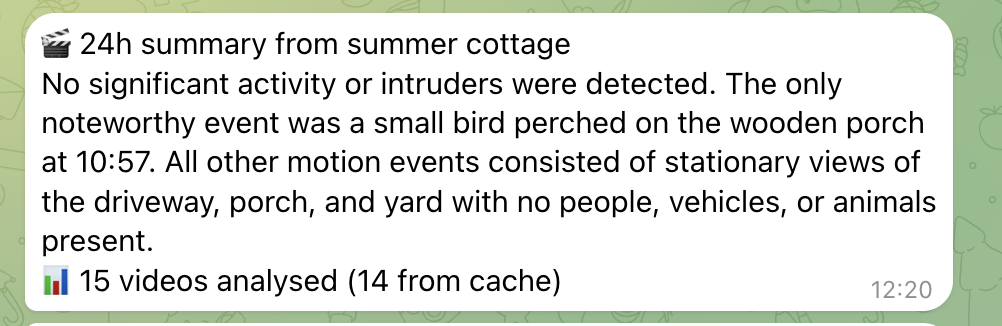
To keep everything completely independent of cloud subscriptions, the software architecture is split into two primary components:
- The
marlin-server: This is the heavy lifter. It handles the actual frame-by-frame analysis of the video files. Because it is doing the heavy visual processing, it requires a dedicated GPU – in my case RTX 3060. - The
marlin-ha-integration: This is the bridge. It coordinates the data flow between your camera system and the vision model – through Home Assistant
The Technical Flow: From Motion to Analysis
To understand how these two components talk to each other, here is the exact lifecycle of a single motion event:
- Analysis Request: The process begins with a Home Assistant service call (action). Instead of constantly monitoring the folder with a background watchdog, the integration fetches the motion clips from your configured media folder only when an analysis is explicitly requested by your automations.
- Cache Check & Upload: Before wasting bandwidth or GPU time, the integration first queries the
marlin-serverbackend. It checks if the specific video file has already been analyzed. If the data is cached, it skips the upload entirely. If it is a new, unanalyzed clip, Home Assistant grabs the raw file and uploads it to the server over your local network. - GPU Processing: The
marlin-servertakes over. It feeds the video frames into the Marlin-2B model, generating that dense, structured timeline of static environment variables and micro-events. - Data Retrieval: The data is then returned back to Home Assistant. Depending on how you configure your automations, this can happen synchronously (Home Assistant pauses the automation to wait for the immediate response, perfect for instant voice assistant queries) or asynchronously (Home Assistant fires the clip off to the queue and retrieves the data in the background, which is ideal for the overnight batching).
Multi-Instance Location Routing
A key architectural feature of Marlin Analyser is its native support for multi-instance deployments. If you manage security footage across multiple properties—for example, a primary residence and a remote summer cottage—you don’t need separate standalone servers. Both locations can stream their clips to Home Assistant, and the integration handles location-tagged routing. You can query, automate, and trigger analysis for one specific location or aggregate the data across all properties simultaneously.
The server is powered by Marlin-2B, an incredibly efficient vision AI model available on Hugging Face for non-commercial use. And while I built this specifically to solve my Unifi Protect headaches, the integration is designed to be flexible: it can use any Home Assistant media folder as its source for security footage.
My Local Tech Stack
If you want to replicate this, you need some local processing power. Here is the exact stack I am running to make this happen:
- Camera Ecosystem: Unifi security systems deployed at both my primary home and summer cottage, utilizing the Unifi Protect integration to automatically store motion event clips directly into their respective local media folders.
- The Video Analysis Environment: The
marlin-serverruns seamlessly inside a Docker container, hosted on a Proxmox LXC (Linux Container). - Video Processing Compute: I have an NVIDIA RTX 3060 with 12GB of VRAM dedicated to the
marlin-server. This card easily chews through a 30-second 2K video clip in about 10 to 15 seconds. Note that Marlin-2B has a hard maximum capacity of processing 2-minute clips. If a motion event clip exceeds this length, the server will gracefully truncate the processing and analyze the initial two minutes only. (Thankfully, typical smart home motion clips rarely cross the 2-minute mark anyway – at least with the Unifi Protect). - Post-Processing Compute: To handle the complex summarization of the raw Marlin data, I pass the text output to a local LLM—specifically Gemma4:26b—running on an NVIDIA RTX 3090 with 24GB of VRAM.
The Hidden Challenge: Structured Data vs. Human Readability
Getting the video analyzed locally is only half the battle. When I first fired up the Marlin-2B model, I quickly realized a fundamental truth about raw vision AI output: it is highly clinical.
Marlin-2B does an excellent job of breaking down the scene. It accurately identifies the static environment and flags specific events as they occur. However, it delivers this as raw, structured data rather than a natural narrative. While this format is perfect for programmatic triggers, it isn’t ideal for a quick morning notification. Waking up to a clinical list of environmental variables and isolated event flags isn’t the seamless smart home experience I was aiming for.
The Post-Processing Solution
To bridge the gap between structured data and human readability, the pipeline requires a post-processing step. The data from the marlin-server needs to be fed into a secondary Large Language Model (LLM) whose sole job is to ingest those raw events, filter out the noise, and generate a concise, actionable summary (e.g., “At 03:14 AM, an unknown vehicle pulled into the driveway; otherwise, the night was quiet”).
Since I already run a dedicated NVIDIA RTX 3090 (24GB VRAM) as my central home LLM to power my main Home Assistant AI integrations, it was a no-brainer to route this text payload there. I pass the raw output to Gemma4:26b running on that 3090. Because the hardware is already handling the home’s general LLM duties, it seamlessly absorbs this task, churning out natural, accurate summaries in seconds.
The Cloud Fallback
Not everyone has a 24GB GPU in their server rack just for summarizing text. The beauty of this two-part architecture is that by the time you reach the post-processing stage, the privacy risk is already completely mitigated. The sensitive security footage never leaves your local network—it is handled entirely by the RTX 3060 and Marlin-2B.
If you don’t have the hardware for local text summarization, you can easily configure Home Assistant to send the raw, anonymized text payload to a fast, cheap cloud API like Gemini or Claude. You get the same intelligent morning summary without sacrificing the privacy of your actual video feeds.
Step-by-Step Automation: Summaries & Instant Voice Queries
Instead of constantly analyzing footage the second a motion event occurs, the system is designed around two highly efficient, distinct workflows: a proactive morning briefing and a reactive, instant voice query.
1. The Proactive Morning Briefing
Every morning at exactly 06:00 AM, a Home Assistant automation kicks off the primary workflow. It fires an analysis request to the marlin-server with location-specific parameters:
- Primary Home: Analyzes footage strictly from the overnight window (22:00 to 06:00).
- Summer Cottage: Runs a full 24-hour lookback to summarize the entire previous day.
Once the marlin-server finishes processing the frames and returns the structured timeline data, Home Assistant routes those payloads directly to the RTX 3090. The LLM generates two distinct, human-readable summaries (one for the house, one for the cottage) and pushes them directly to my phone as a Telegram message. By the time I wake up, I have a clean, formatted security report waiting for me.
2. On-Demand Voice Assistant Queries
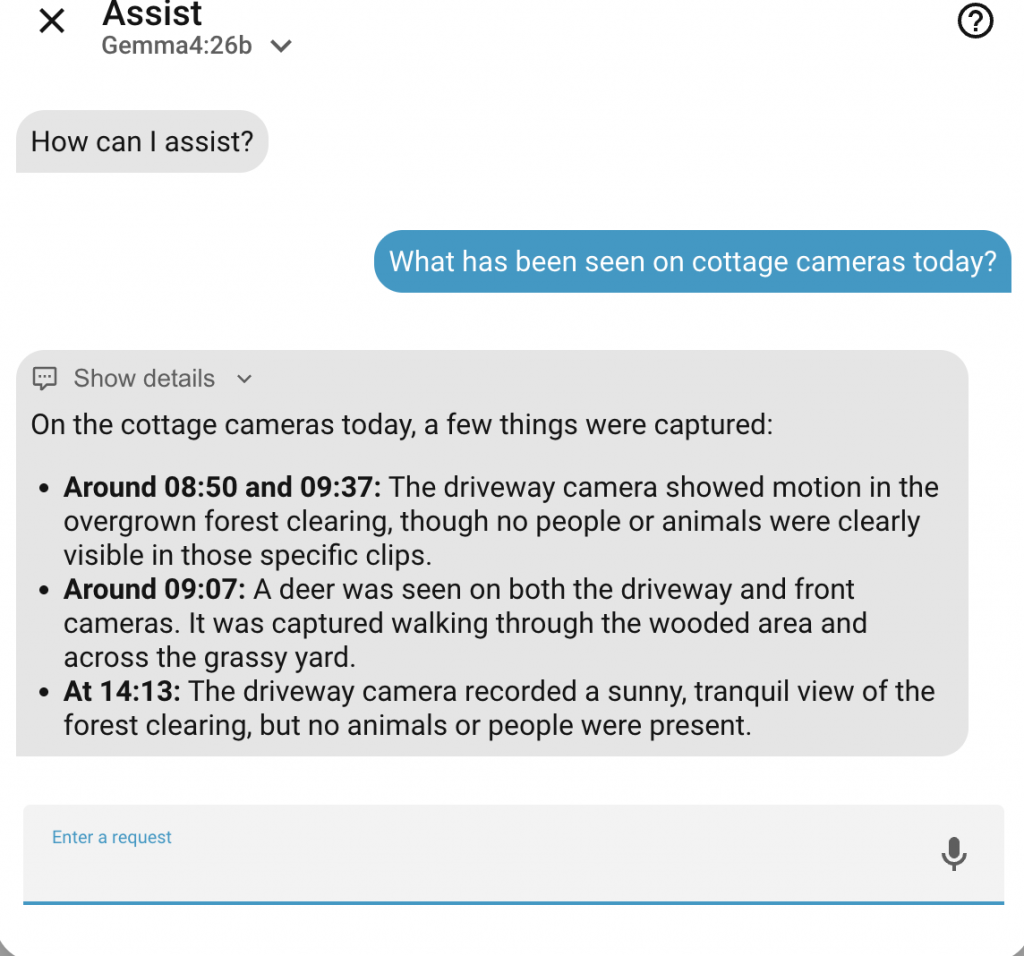
Sometimes, I just want an update on the fly. Because my smart home is voice-enabled, I can simply ask the assistant: “What has been seen at the cottage today?”
The major hurdle with voice queries is latency. You do not want to stand in your living room waiting 30 seconds or more for a GPU to chew through a new video file before the assistant can reply. To eliminate that wait time, the system relies on background caching.
Home Assistant runs a secondary background automation that batches and sends any new, unanalyzed clips to the marlin-server every two hours. Both the marlin-ha-integration and the server itself feature a built-in cache—if a video file has already been processed, it is intelligently skipped.
Because the heavy visual analysis is being quietly handled in the background throughout the day, an on-demand voice query only has to pull the pre-analyzed text data, pass it through the summarization LLM, and read it back. The result is an almost instantaneous verbal update on exactly what is happening at either property.
Putting It Together: Home Assistant automations
Now let’s look at how this is actually implemented in Home Assistant. The custom integration introduces three core actions:
marlin_analyzer.get_summary(performs a deep lookback and text aggregation)marlin_analyzer.get_instant_summary(leverages cached background analysis for rapid responses)marlin_analyzer.analyze(forces a background analysis pass to populate the cache)
1. Automated Morning Summaries
To automate the daily briefings, I set up two separate automations. The primary residence runs at 06:00 AM looking back at the 8-hour overnight window, while the summer cottage configuration fires at 06:30 AM to compile a full 24-hour window.
Both automations fetch the raw timeline from Marlin, pass it to a local Ollama task running Gemma, and push the final response out to Telegram.
YAML
alias: Morning security summary (Home)
description: >-
  Every morning at 06:00, fetch overnight video analysis from Marlin, summarize
  it with AI, and send via Telegram.
triggers:
  - trigger: time
    at: "06:00:00"
actions:
  - action: marlin_analyzer.get_summary
    data:
      lookback_hours: 8
      instance: Home
    response_variable: marlin
  - action: ai_task.generate_data
    data:
      entity_id: ai_task.ollama_ai_task
      task_name: Security overnight summary
      instructions: >-
        You are a home security assistant. Summarize the following overnight
        security camera events into a brief, readable report. Focus on anything
        noteworthy — people, vehicles, animals, unusual activity. Ignore events
        that are clearly just wind, shadows, or lighting changes. If nothing
        significant happened, say so briefly.

        Keep the summary under 500 characters. Use English language. Start
        directly with the summary, no greetings or headers.

        Events: {{ marlin.llm_context }}
    response_variable: ai_result
  - action: notify.send_message
    target:
      entity_id: notify.home_telegram_bot
    data:
      message: >-
        🎬 Night summary

        {{ ai_result.data }}

        📊 {{ marlin.clips_analyzed }} videos analysed ({{ marlin.clips_cached }} from cache)
(Note: For the summer cottage automation, simply adjust the trigger to 06:30:00, change the lookback_hours to 24, modify the instance to Cottage, and swap the notification header to 🎬 24h summary from summer cottage.)
2. Background Caching (Every 2 Hours)
To make sure voice assistant queries are instantaneous, we can’t wait for the GPU to process video files on demand. Instead, a time-pattern automation triggers every 2 hours with a 4-hour lookback window across all instances. Because the marlin-server automatically skips files it has already processed, this keeps our local cache updated throughout the day with minimal overhead.
YAML
alias: Marlin batch analysis every 2 hours
description: >-
  Run video analysis on all Marlin instances every 2 hours with 4h lookback.
  Cached items are not re-analyzed.
triggers:
  - hours: /2
    trigger: time_pattern
actions:
  - action: marlin_analyzer.analyze
    data:
      lookback_hours: 4
mode: single
3. The Voice Assistant Integration Script
With the background caching handling the heavy visual processing, we can expose a reusable script directly to Assist. By utilizing fields like location and hours, the voice assistant can dynamically capture the intent and fetch the cached timeline data near-instantaneously using get_instant_summary.
YAML
alias: Query security camera events
description: >-
  Query analyzed security camera events for a specific location. Use this when
  the user asks about security cameras, what happened overnight, any activity at
  home or cottage, or anything related to security footage. Returns a summary of
  detected events.
icon: mdi:cctv
mode: single
fields:
  location:
    name: Location
    description: "Which location to query: Home, Cottage, or all for both locations."
    required: true
    example: Home
    selector:
      select:
        options:
          - Home
          - Cottage
          - all
  hours:
    name: Hours
    description: How many hours back to look. Default 8.
    required: false
    default: 8
    example: 12
    selector:
      number:
        min: 1
        max: 48
sequence:
  - action: marlin_analyzer.get_instant_summary
    data:
      instance: "{{ location if location != 'all' else '' }}"
      lookback_hours: "{{ hours | default(8) | int }}"
    response_variable: result
  - stop: Security event query complete
    response_variable: result
Want to Build It? Installation & Getting Started
Because this project involves a couple of moving parts—setting up a Dockerized server for the GPU processing and adding a custom integration to Home Assistant—the full installation instructions are too extensive to paste here.
If you have the hardware and want to replicate this setup, I have published everything you need on GitHub. The repositories contain the full installation guides, Docker Compose files, and the necessary custom component files for Home Assistant:
- [marlin-server on GitHub]: This repository contains the Docker environment, API structure, and instructions for getting the Marlin-2B model running with GPU passthrough.
- [marlin-ha-integration on GitHub]: This is the custom Home Assistant integration that you can add via HACS (Home Assistant Community Store) as a custom repository. It handles the communication, caching, and blueprint actions.
The README files in both repositories will walk you through the initial configuration, how to link your Home Assistant media folders, and how to verify that your GPU is successfully chewing through the video frames. If you run into any issues or have ideas for improvements, feel free to open an issue, submit a pull request, start a discussion or just drop a comment on this article!
Conclusion & The Road Ahead
So far, running this entire ecosystem has been a massive success. Moving from generic, noisy motion alerts to an intelligent, contextual summary has completely changed how I monitor my properties. The system has proven to be incredibly reliable, running quietly in the background day after day.
Is a 2-billion-parameter local vision model flawless? Of course not. Marlin-2B has its minor quirks—a few times it has mistaken a backyard rabbit for a cat, and environmental edge cases will always pop up. But these small nuances never compromise the core security utility of the platform. On the flip side, its capabilities are occasionally surprising; it routinely identifies car brands accurately, and even attempts specific car models with varying degrees of success. For a lightweight model running entirely on an RTX 3060, the performance is stellar.
What’s Next?
Because the software is currently in such a stable and productive state, my future roadmap isn’t locked in just yet. I plan to live with the system for a while longer, monitoring how it performs across changing seasons and analyzing where the true bottlenecks or missing features might lie.
Building a local-first, AI-augmented security pipeline requires some initial effort to configure hardware passthroughs and orchestrate models, but the payoff of total privacy and zero monthly fees makes it entirely worth it.
